Hero Image

EMAIL SETUP FOR OUTLOOK

Using Outlook On Windows

Microsoft Outlook

If your Outlook looks like the picture below, please jump to Section 2 to continue setup. Otherwise start at Section 1.
win1

Section 1

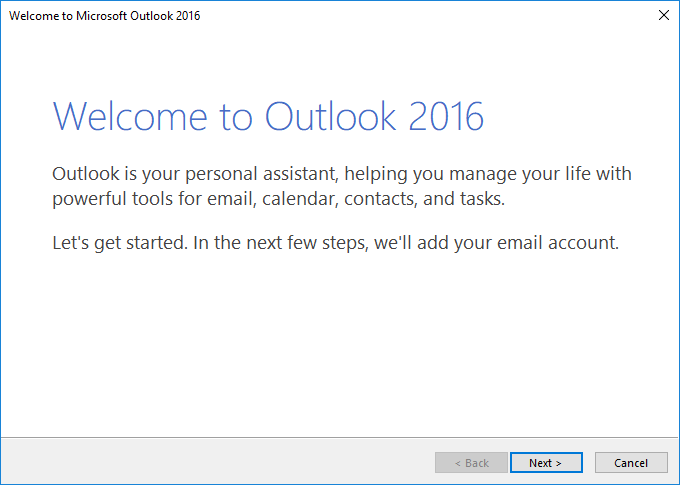
  • If you have a Southern owned computer, your Outlook should look like this when you open it for the first time. If it does not, please jump down to Section 2.
Windows Outlook Alt1

  • Click Next.

Windows Outlook Alt2

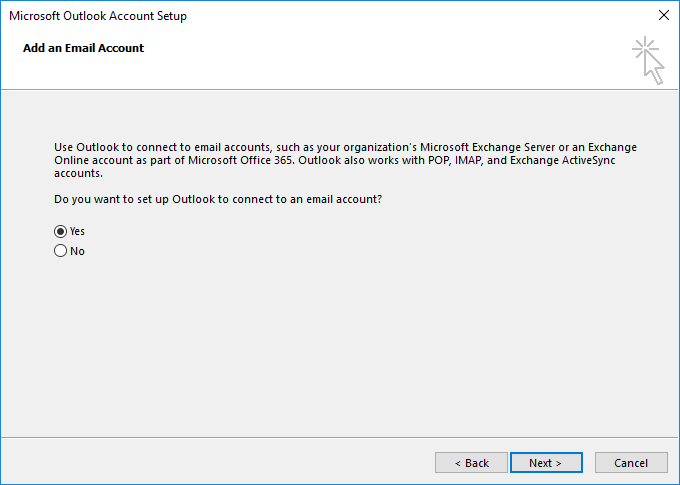
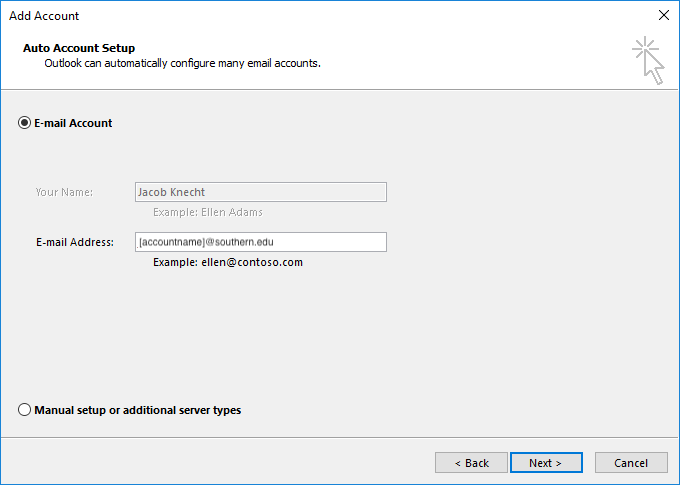
  • Make sure Yes is selected and click Next.
Windows Outlook Alt3

  • If a smaller box pops up during the setup, make sure you select the option Don't ask me about this website again and click Allow.
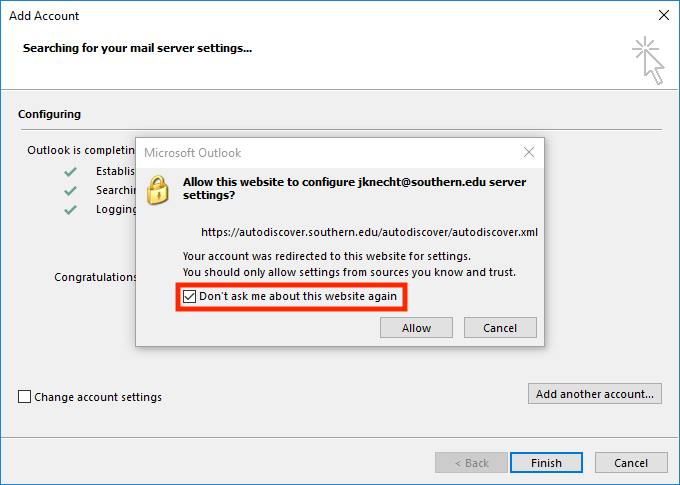
Win Outlook Alt4

  • Once the setup has finished select Finish to complete the setup.
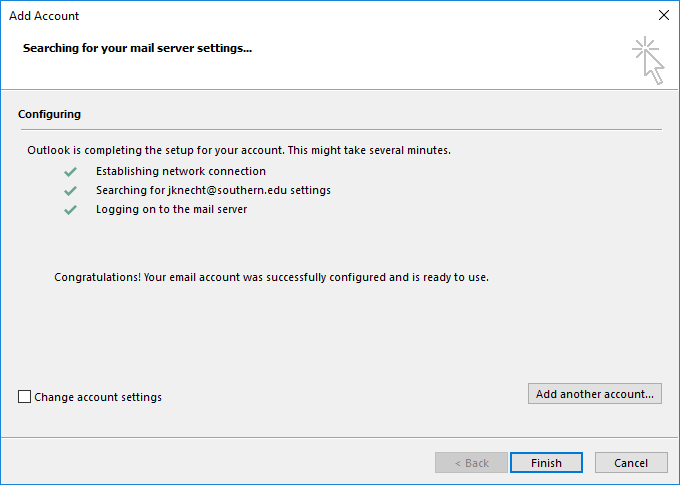
Windows Outlook Alt5

Section 2

  • If your Outlook looks like the picture below, please continue to the next step.

win1

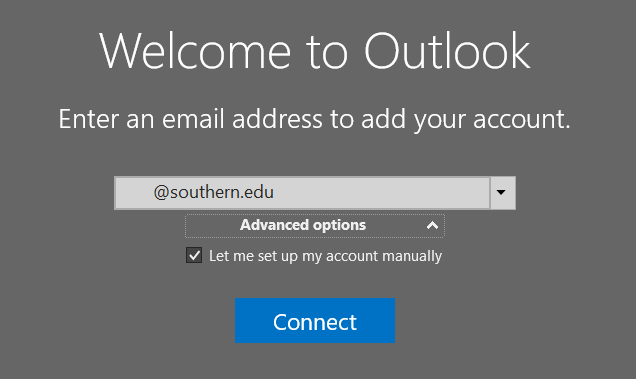
  • When prompted to add an account, enter your Southern email and click Advanced Options. Click Connect.
  • Check the box Let me set up my account manually.
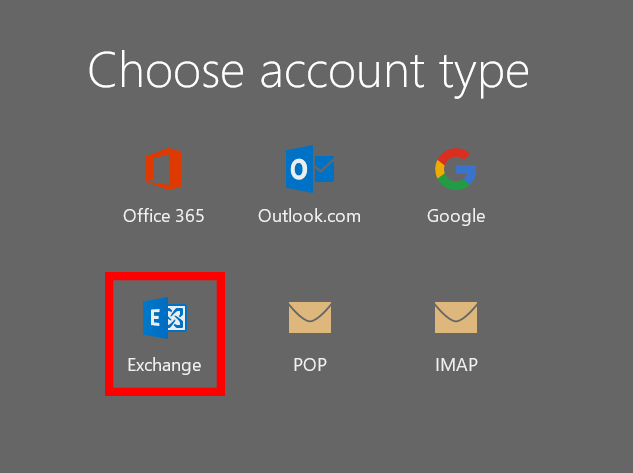
  • Select Exchange.

win2

  • You may be met with a Mail Delivery Location dialog box; if so, click OK.
  • Click OK.
Using Outlook on MacOS

Open Outlook and click Get Started.
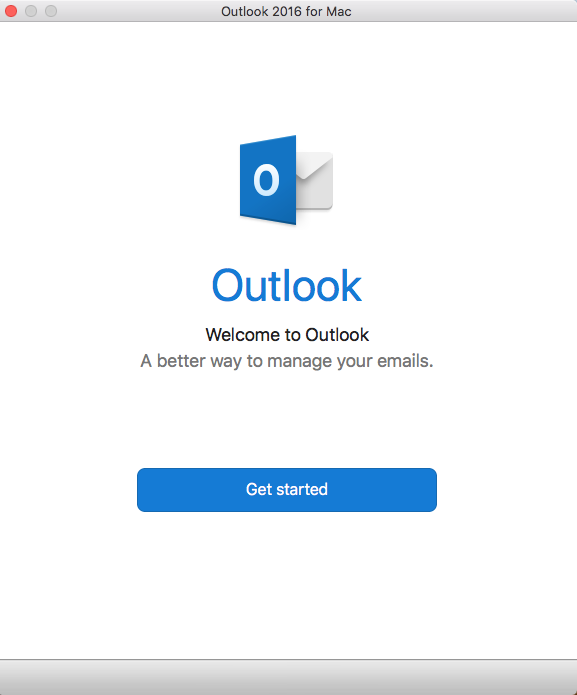
Mac Outlook 1

  • Choose the theme of your choice and click Continue.
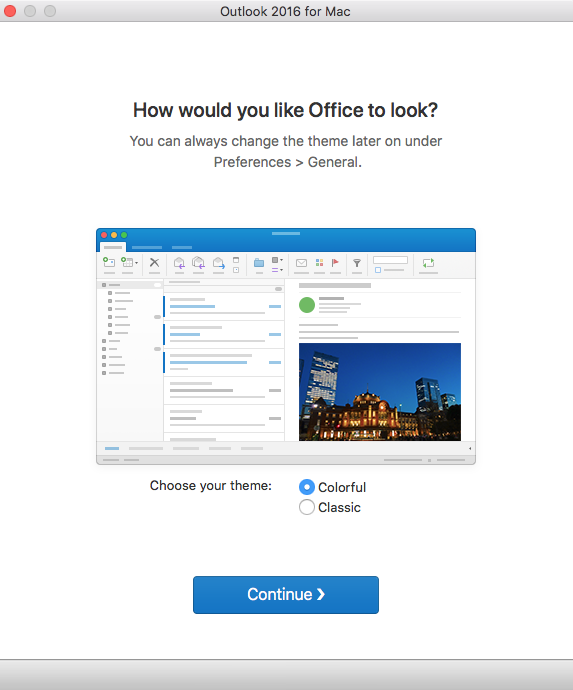
Mac Outlook 2

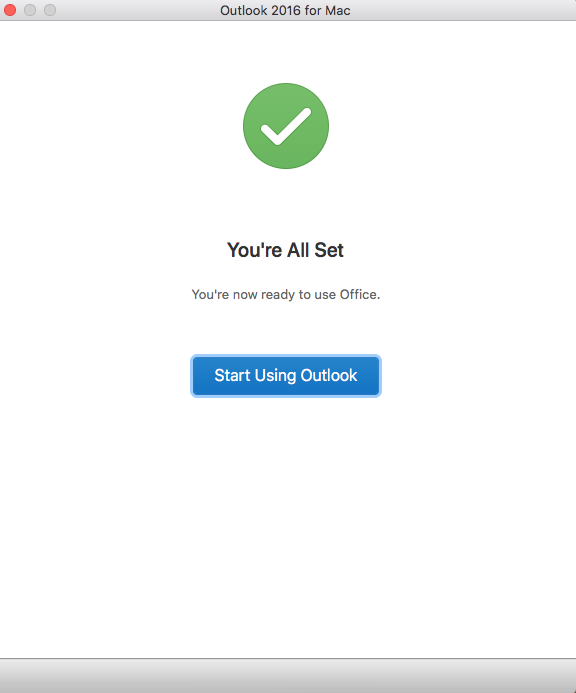
  • Click Start Using Outlook.

Mac Outlook 3

  • Enter your Southern email account in the space given and click Continue.
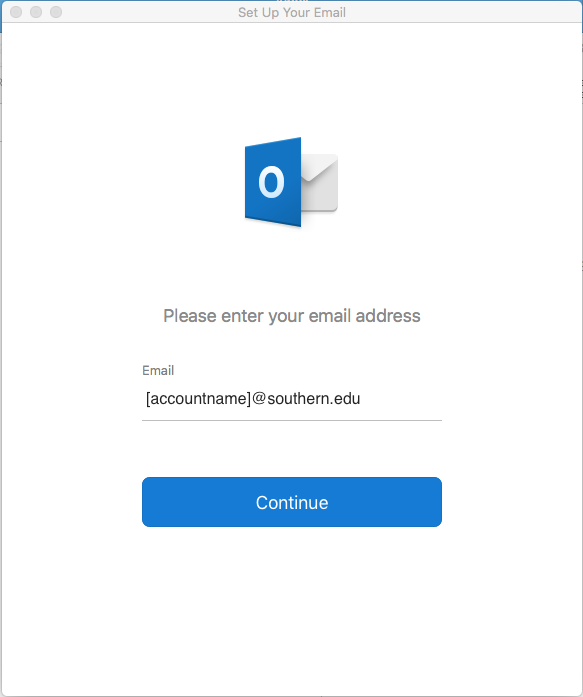
Mac Outlook 4

  • On the next screen click Not Gmail? at the top right.
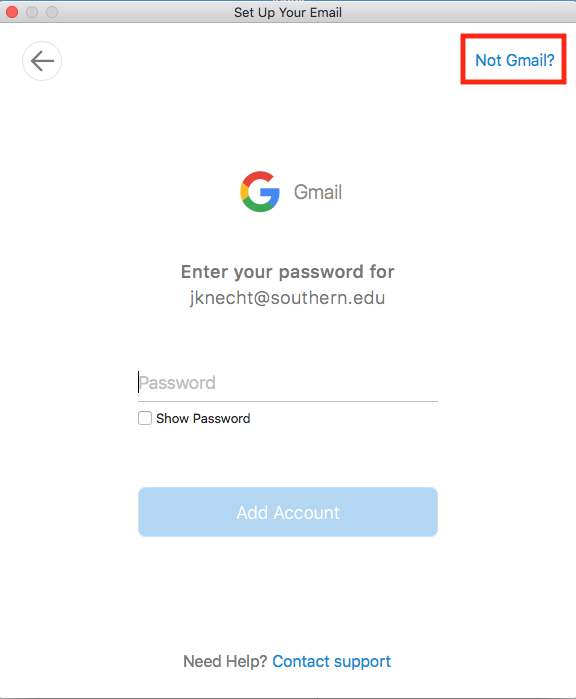
Mac Outlook 5

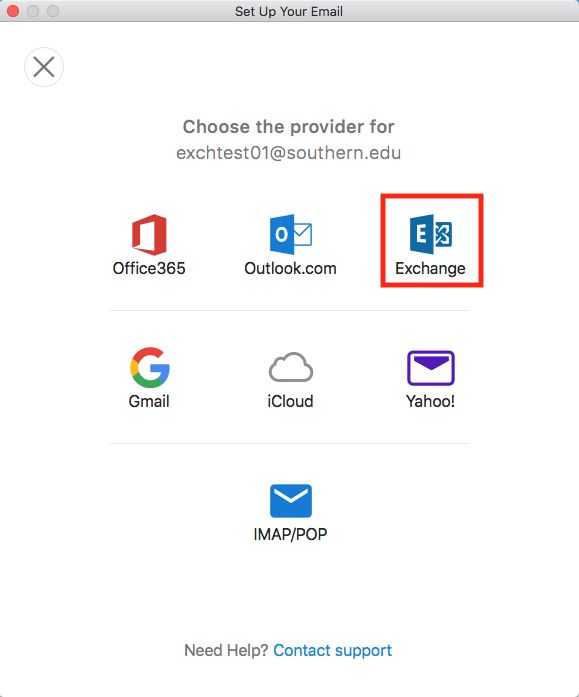
  • Click on the Exchange icon.

Mac Outlook 6

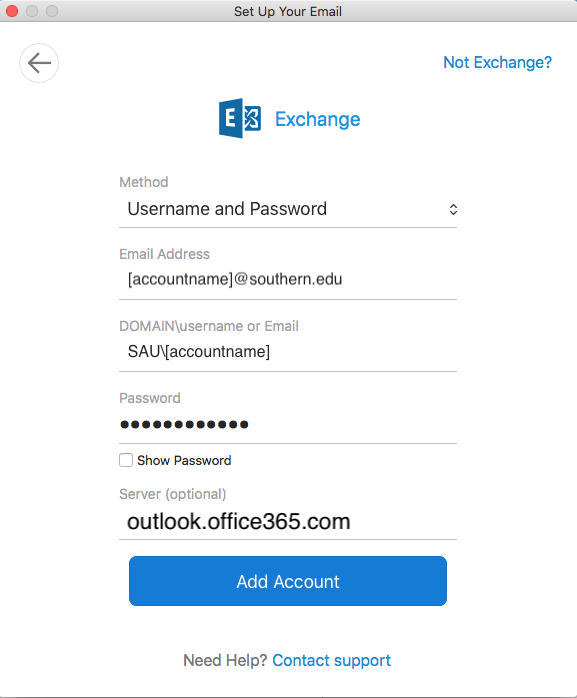
  • On this next screen, enter in the information as required:
  • Email Address: Your Southern email address
  • DOMAIN\username or Email: Type in SAU\[Your Southern Account Name]
  • Password: Your Southern email password
  • Server (optional): Type in outlook.office365.com
  • Click Add Account to continue.

server

  • If you want to add another account, click Add Another Account. Otherwise click Done to finish the process.
Add a Shared Mailbox in Outlook for Mac

If you have been granted access to a shared mailbox, use these steps to add it in Outlook for Mac:

  1. Open Outlook.
  2. On the menu bar, click Tools.
  3. Click Accounts.
  4. Select your Southern email account.
  5. Click Advanced.
  6. Open the Delegates tab.
  7. Under Open these additional mailboxes, click the + button.
  8. Search for the shared mailbox name or email address.
  9. Select it and add it.
  10. Close the settings window and return to Outlook. The shared mailbox should appear in your folder list. These are Microsoft’s documented steps for opening another mailbox in Outlook for Mac when you have delegate or full access permissions.

If the mailbox does not appear right away, close and reopen Outlook and try again. Microsoft also notes older Mac workflows for opening shared folders and calendars, but the Accounts > Advanced > Delegates method is the clearest fit for a full shared mailbox

Important Notes

  • You must already have permission to the shared mailbox before you can add it. 
  • If you do not see the shared mailbox as an option, confirm that your account has been granted access first.
Add a Shared Mailbox in Outlook for Mobile

These steps apply to Outlook for iPhone and Outlook for Android:

  1. Open the Outlook app.
  2. Tap your profile icon or the Inbox icon to open the side menu.
  3. Tap the gear icon for Settings.
  4. Tap Add Account.
  5. Tap Add Shared Mailbox.
  6. Enter the shared mailbox email address.
  7. Follow any prompts to complete setup.

Microsoft’s current Outlook mobile documentation says shared mailboxes can be added from the Outlook sidebar or Settings area by choosing Add Shared Mailbox, then entering the mailbox address.

Important Notes

  • You must already have permission to the shared mailbox before you can add it. 
  • If you do not see the shared mailbox as an option, confirm that your account has been granted access first.